

Organizations
Reset two-factor authentication
Updated: June 19, 2025
When logging in to your account, you must enter your email address and password. Afterward, you'll need to enter a one-time code generated by your preferred authenticator app (e.g., Google Authenticator). If you are unable to generate this code, you can reset your two-factor authentication using your recovery code.
You must have your recovery code to reset two-factor authentication. Contact support if you do not have this.
To reset two-factor authentication:
- Log in using your email address and password.
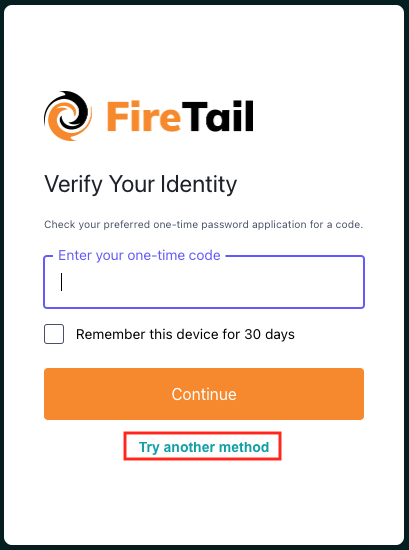
- Verify your identity by entering a one-time code from your authenticator app. If you cannot generate a code, click Try another method.
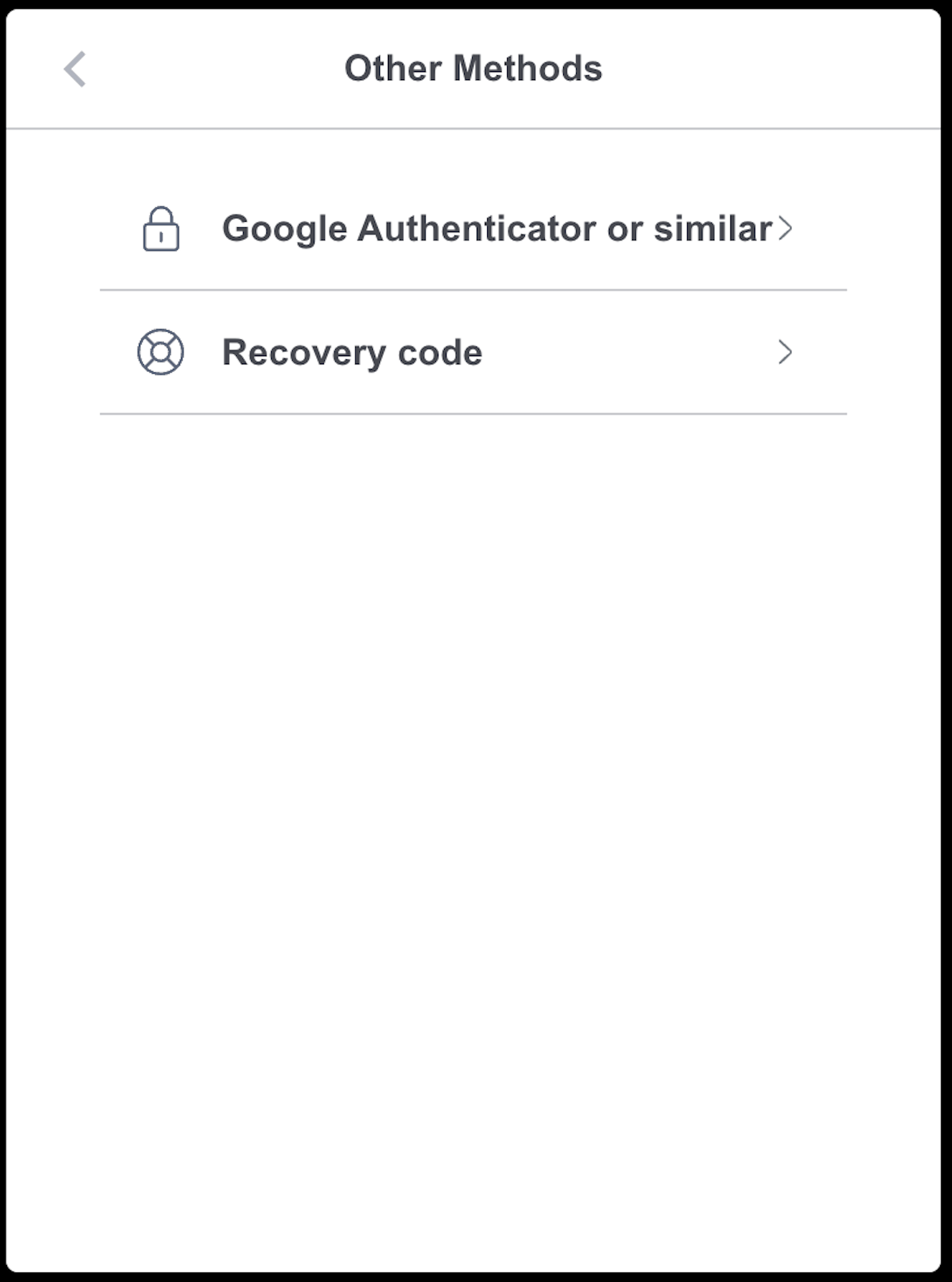
- Click Recovery code.
- Enter the recovery code that was displayed when you set up the account. Click Continue.
- A new recovery code will be generated. Copy this code and store it securely, such as in a password manager.
- Check the box to confirm that you have copied and stored the new recovery code.
- Click Continue to sign in.